
Ordering Guidance, iProcurement
Introduction
This guide explains the appropriate method of ordering on iProcurement, depending on the contract or framework arrangement in place. It should be used to identify the correct ordering route and to support consistent, compliant requisitioning. Requisitions submitted through an incorrect route will be discussed with the user and returned for amendment and resubmission through the appropriate process.
For help with navigating the iProcurement system, please refer to the iProcurement user guides and training resources linked in the ‘iProcurement user guides and information’ section of this document.
Ordering Options at a glance
| At a glance: which option to use? | Decision reason |
|---|---|
| Option 1 (BPA/Catalogue) | Use when the contract/framework has core listed catalogue items and the goods/services can be selected directly from the iProcurement Store. |
| Option 2 (CPA/Non-Catalogue) | Use when the goods/services are not available in the iProcurement Store. Raise a ‘Non-Catalog’ Request; CPS Operations will link it to the correct contract agreement reference (CPA) during order creation. |
| Option 3 (Marketplace) | Use when the contract/framework allows Marketplace access and you need to select items directly from an approved supplier’s online catalogue using the Marketplace icon in iProcurement. |
| Option 4 (Estimated Value Order – BPA/Catalogue OR CPA/Non-Catalogue) | Use when the exact cost is not known at the time of ordering and you need to secure funding for ongoing/variable requirements over a stated period. Requisitions may be raised as either a non-catalogue request or estimated directly from the shop. The appropriate ordering method will be noted on the contract schedule as required. |
Ordering method - Option 1
Contract/Framework with core listed catalogue items (items uploaded to the iProcurement Store)
When to use?
Use when the contract or framework includes core listed catalogue items that can be selected directly from the iProcurement Store. No manual action by the CPS Operations Team is required. Once the requisition is approved, the order is sent automatically to the supplier, making the process faster and more efficient. Where an item is available through the store, orders should be created using the shop functionality rather than as a Non-Catalog Request.
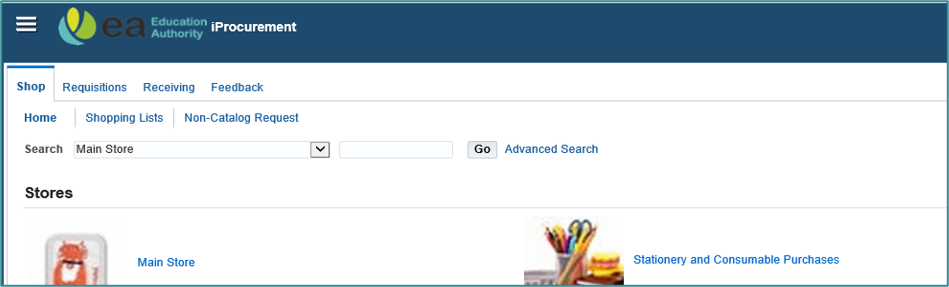
Figure 1: EA iProcurement Shop screen showing the Main Store catalogue, where users can search for products uploaded on the shop and add to the basket. Products can be searched for by:
- Contract reference (if known)
- Contract item number (if known)
- Supplier name
- Key word
------------------------------------------------------------------------------------------------------------------------------------------------------------------------
Ordering method - Option 2
Contracts/Framework with no core listed items – for example, Catalogue arrangements (where items are NOT uploaded to the iProcurement Store)
When to use?
Use when the goods or services are not available in the iProcurement Store. Raise a Non-Catalogue Request Requisition manually and ensure the requisition contains enough detail, in the description field, to allow the supplier to provide the correct goods or service (inc. product or service description, colour and finish, product code if applicable). The CPS Operations will link it to the correct contract agreement reference (CPA) when creating the order.
Select the requisition type that best matches the requirement. For a non-catalogue requisition, choosing the correct type ensures the request reflects the contract terms and operational need.
The requisition type options for non-catalogue requests are as follows:
- Goods I can provide description, item price, and quantity (This option relates to quantity-based orders and can also be applied to orders for services if the price and quantity is known).
- Goods or services I can provide description and total amount (This option should only be selected if the order is an amount-based order or an estimated value order).
- Services I can provide description, rate, and quantity (This option relates to orders for a service whereby there is a fixed rate either hourly, daily, fixed fee, or per unit).
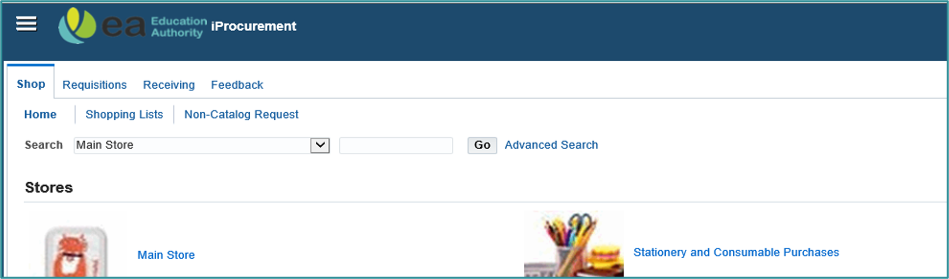
Figure 2: EA iProcurement home screen, showing where users can create a manually typed on requisition by accessing the 'Non-Catalog Request' function
------------------------------------------------------------------------------------------------------------------------------------------------------------------------
Ordering method - Option 3
Contracts/Framework with items selected directly from Marketplace site
When to use?
Use when the contract/framework provides access to items available from an approved Marketplace supplier with requisitions created directly via the Marketplace site. Requisitions are pulled back into iProcurement for final review and approval. No manual action by the CPS Operations Team is needed. Order is issued automatically once approved, making the process faster and more efficient.
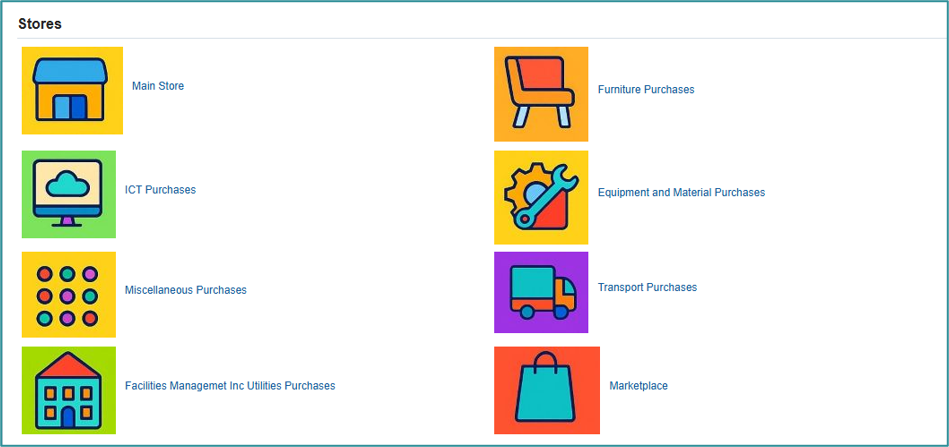
Figure 3: EA iProcurement home screen, showing the iProcurement icons linked to categories of spend. Users access the Marketplace by clicking on the 'Marketplace' icon
-----------------------------------------------------------------------------------------------------------------------------------------------------------------------
Ordering method – Option 4
Estimated Value Orders (BPA or CPA)
When to use?
Use when the exact cost is unknown at the time of ordering. It allows departments and schools to secure funding for ongoing or variable requirements based on an estimated spend.
A requisition for estimated value orders must be:
- Prepared with care, ensuring all necessary details are included.
- The requisition should be raised in advance of the service taking place to ensure compliance and proper financial management.
- It is essential to clearly state the period covered by the requisition in the description line.
- The order will be linked to the relevant contract or framework, using the appropriate contract agreement reference (by the CPS Operations Team), to maintain clarity and accountability.
- Most requirements for estimated value orders are created as a ‘non-catalogue request’ requisition by manually typing in the requirement details. However, some contracts allow an estimated value order to be created direct from the iProcurement Store. The ordering method will be clearly noted on the schedule.
Please note that the estimated value stated in the requisition does not guarantee orders up to that amount will be placed with the supplier. The budget is only affected once services are delivered and invoices are receipted.
Once an estimated value order has been set up, and a requirement covered by the purchase order arises, the department or school should:
- Contact the appropriate supplier to arrange the booking, ensuring they quote the relevant order number.
- Quoting the order number ensures invoices are assigned to the right purchase order.
- On receiving the invoice, check its accuracy and relevance.
- Receipt the invoice amount, excluding VAT, against the estimated value order and send to accounts for payment. Ensure all related invoices are assigned to the correct purchase order and budget.
If a purchase order is no longer needed or has expired, email [email protected] with the order details, reason, and final value (total of invoices paid minus VAT). Confirm all invoices are received before requesting cancellation.
If the order is fully used before its end date, raise a new requisition for additional costs. For guidance, contact [email protected]
------------------------------------------------------------------------------------------------------------------------------------------------------------------------
Supplier Order Information Requirements
Ensure that requisitions include all relevant supplementary information and delivery instructions for suppliers. These should be clearly added to the ‘note to supplier’ field within the requisition.
Examples of important information to provide:
- Opening hours of the delivery location and any closure dates (such as bank holidays, Christmas, or summer breaks).
- Recipient contact details or additional delivery location information, if required.
Colour, size, or other product options not available directly from the iProcurement Store. Clearly specify these requirements, along with product codes and descriptions, to ensure accurate delivery. When items are selected from the iProcurement Store, each available option will have a separate product line to choose from.
--------------------------------------------------------------------------------------------------------------------------------------------------------------------
Receipting and invoicing
All orders should be receipted without delay once goods or services have been delivered. Do not receipt items before they have been received. Invoices should be directed to Accounts Payable for payment.
------------------------------------------------------------------------------------------------------------------------------------------------------------------------
Order cancellations
Order cancellations are actioned on the iProcurement system, on the behalf of the customer by the CPS Operations Team.
For information on the order cancellations process, please access the guidance on EA Procure below.
https://procurement.eani.org.uk/guidance-purchase-order-cancellations-0
------------------------------------------------------------------------------------------------------------------------------------------------------------------------
Contact Details
| Team/contact | Reasons to contact us | Contact details |
|---|---|---|
| CPS Operations Team | Support with raising requisitions, creating/processing orders (including linking to BPA/CPA where required), and purchase order cancellations. | Email – [email protected]
Order cancellation requests on iProcurement should be directed to – Email - [email protected]
Telephone number – 028 9047 5010 |
| Accounts Payable Team | Queries about invoice payment and payment status once invoices have been submitted. | Email - [email protected]
Telephone number – 028 9047 5010 |
| EA One Team (Application Support) | Help with system errors, access issues, and technical problems using EA One / iProcurement. | Telephone number - 028 9047 5000
Log an EA One system query - Here |